Saturday, June 16, 2012

Editing Gnome system menu

A Gnome menu editor suprisingly called "alacarte".

Installation:
sudo yum install alacarte gconf-editor

Thursday, June 7, 2012

Installing Atlassian Plugin SDK side by side with existing development environment

Atlassian Plugin SDK requires its own Maven settings, JDK version and set of environment variables (like ATLAS_HOME) to work.

If you're already an advanced user of Eclipse and Maven you may already have a customized setup that you don't want to modify in favor of Atlassian PSDK requirements.

It's possible to isolate all Atlassian setup with a simple shell script that will create a temporary new shell with proper environment for Atlassian plugin development and without any effect on the rest of your system.

Recommendations are for Windows platform, but it should be easy enough to apply them for Linux users.

Configuration instructions


  1. Choose a location for PSDK files
  2. Download Atlassian Plugin SDK
  3. Configure PSDK Maven to use custom user settings location
    1. Edit %ATLAS_HOME%\apache-maven\bin\mvn[.bat], modify command under the ":runm2" label by adding
      "--settings %M2_HOME%\conf\user-settings.xml"
      at the end of the command line
    2. Create apache-maven\conf\user-settings.xml file
      <?xml version="1.0" encoding="UTF-8"?>
      <settings xmlns="http://maven.apache.org/settings/1.0.0" 
                xmlns:xsi="http://www.w3.org/2001/XMLSchema-instance" 
                xsi:schemaLocation="http://maven.apache.org/SETTINGS/1.0.0
                http://maven.apache.org/xsd/settings-1.0.0.xsd">
        <localRepository>${env.ATLAS_HOME}/repository</localRepository>
      </settings>
  4. Create shell scriptset
    JAVA_HOME=C:\dev\atlassian\jdk1.6.0_31
    set ATLAS_HOME=C:\dev\atlassian\atlassian-plugin-sdk-3.10.4
    set M2_HOME=%ATLAS_HOME%\apache-maven
    set M2_REPO=%M2_HOME%\repository
    set M2=%M2_HOME%\bin
    set PATH=%JAVA_HOME%\bin;%ATLAS_HOME%\bin;%M2%;%PATH%
    cmd
  5. Test that PSDK works
    atlas-run-standalone --product jira
  6. Download Eclipse IDE for Java EE Developers
  7. Start Eclipse and configure workspace for your Atlassian projects

Optional steps


  • Install m2eclipse, SVN, etc. and configure m2eclipse to use "external" PSDK Maven installation and user settings file.
  • Download and attach Atlassian product source code. You need to have an account on http://my.atlassian.com to do that.

Eclipse and m2e configuration troubleshooting

  • Error "Build path is incomplete. Cannot find the class file for com.atlassian.*"
    Solution Verify that Window - Preferences - Maven - User settings - Local repository points to the same location that is specified in conf\user-settings.xml.
  • Error "Plugin execution not covered by lifecycle configuration"
    Solution Use "quick fix" suggestion to ignore all such errors

Saturday, May 19, 2012

Sunday, May 13, 2012

Using SLAM algorithm to map surrounding environment and determine location of NXT Rover Explorer

Initially a robot have no idea where it is, how it is oriented in space and what an environment looks like. This means that a robot will have to explore its initial position, recognize useful landmarks and use them to get certainty about its localization.
Robot has no idea about its location, environment and position of  ultra sonic sensor
After initial localization step it will be possible to command a robot to got to a point in the unexplored space, defined relative of robot "home" location.

Robot got some data from radar that could be used as constraints to estimate possible location. Still, many locations  are possible, so robot isn't localized yet.
While moving to defined point a robot should detect and avoid any obstacle, build environment map and use it for localization purposes.

SLAM demo:


Some SLAM implementations

Further resources


Saturday, May 12, 2012

Rover Explorer Robot building instructions


All main robot components are from standard Lego Mindstorms NXT 2.0 kit. Few additional Lego bars (black) were used to make costruction more solid, but they can be replaced with lighter parts from NXT 2.0 set.

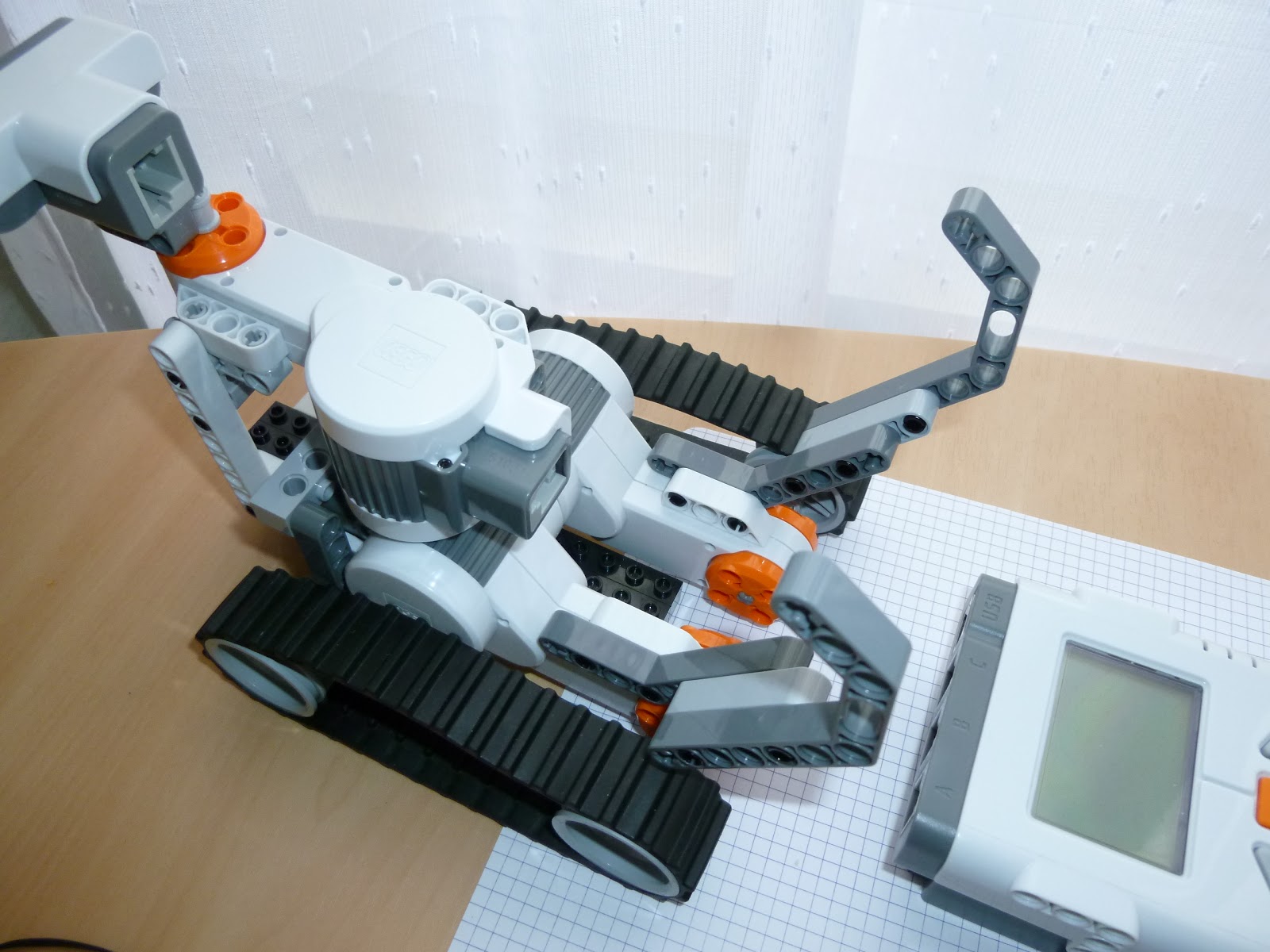
Complete robot view

Building instructions


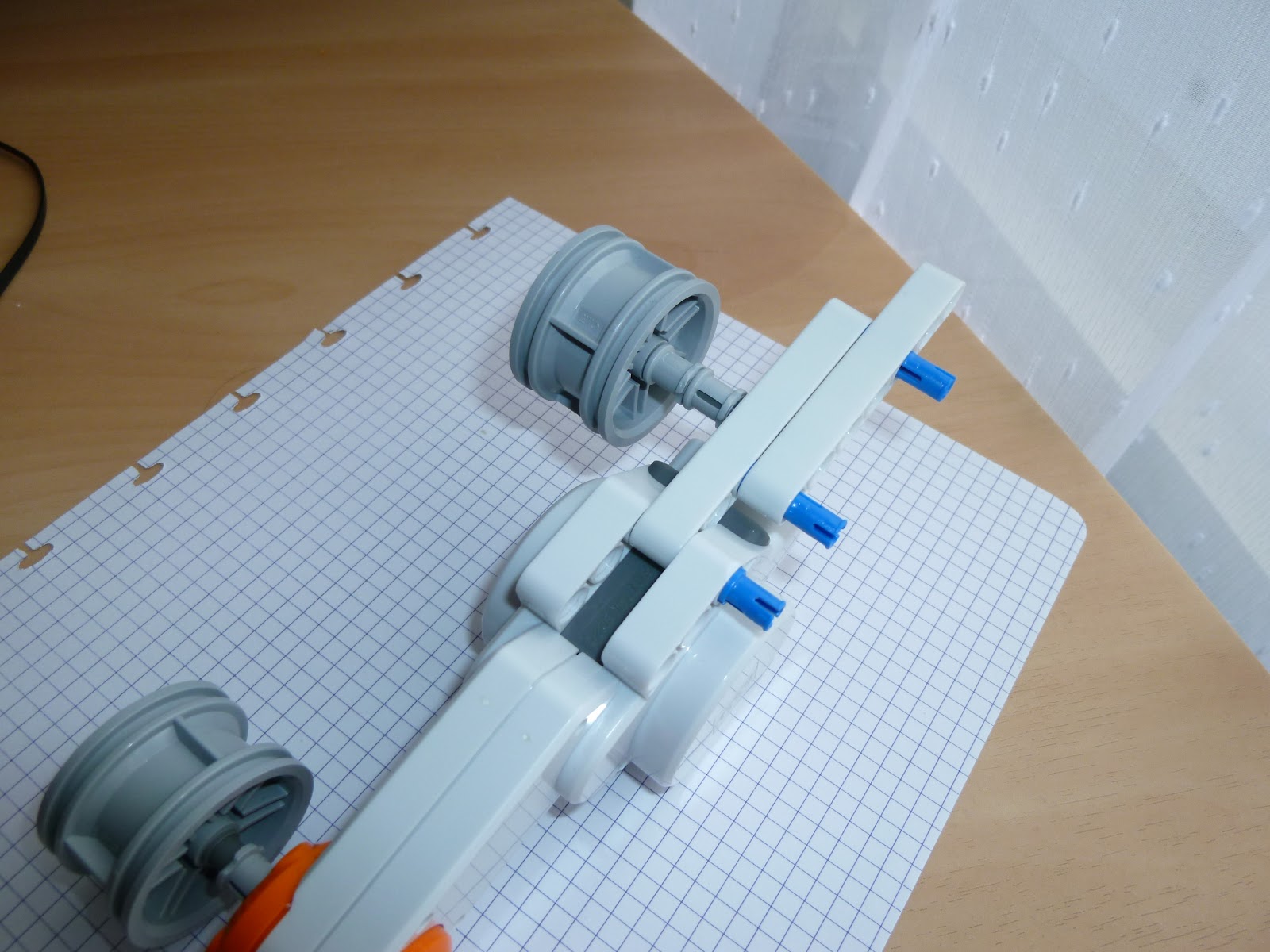
Servo for left track (partially assembled)

 Complete servo for left track

Left track with servo, assembled

Both left and right tracks and servos assembled

Connecting robot base parts together (side view)

Connecting robot base parts together (back view) 

Turnable (servo) platform with ultrasonic sensor, parts 

Ultra sonic sensor platform, assembled

Front view of robot base just before sonic platform installed

Robot base with ultra sonic platform installed

Fixings for NXT Brain

Robot base with NXT Brain fixings, assembled


NXT Brain mounted on the robot platform

Installing contact and color sensor, front view

Contact sensor on the back


Complete NXT Rover Robot (no wires connected yet) 

NXT Rover Robot mechanical test using NXT Remote

Rover Explorer Robot (Mindstorms NXT 2.0, LeJOS)

Inspired by design of
and some code pieces from the "legointernational" project on Google Code I decided to build NXT Mindstorms 2.0 and LeJOS based rover explorer robot matching two main design goals:
  • maximum sensing capabilities available in standard NXT 2.0 kit: touch, ultrasonic and color sensors
  • durability and ruggedness: use tracks instead of wheels
  • simplicity: minimize the number of components
Step 1. Building Rover Explorer Robot platform
Step 2. Implement ultrasonic sensor based feature detection
Step 3. Implement Fast SLAM (Simultaneous Localization and Mapping)
Step 4. Implement environment exploration and motion planning
Step 5. Real-time data exchange with PC and graphical dashboard


Getting insight on Eclipse usage in your organization

Starting from version 3.4 (Ganymede) Eclipse includes Usage Data Collector (UDC) feature that installs listeners on the Eclipse workbench and gathers anonymous information about user actions - activation of views and perspectives, plug-in versions, etc.

While the UDC project raised some privacy concerns among world-wide community of Eclipse users and appeared to be not so useful as expected for Eclipse.org, it isn't really "an evil" thing and may be a valuable source of information for smaller domains like single organization, department or team or for getting automatic usage feedback for a RCP-based application.

By default UDC stores all usage data in CSV format in
.metadata/.plugins/org...epp.usagedata.recording/upload#.csv
and regularly sends all data to Eclipse.org, but this can be changed by using run-time property
-Dorg.epp.usagedata.recording.upload-url=http://your-internal-udc-server

To avoid tracking privacy-sensitive information like user name, computer name, etc. Eclipse UDC creates two neutral UUIDs to identify particular installation and workspace: 
  • $HOME/.org.eclipse.epp.usagedata.recording.userId
  • $WS/.metadata/.plugins/org.eclipse.epp.usagedata.recording/.org.eclipse.epp.usagedata.recording.workspaceId
There are several possibilities to collect usage data from Eclipse and RCP application instances:


Alternatively, you may decide to use org.eclipse.epp.usagedata.recording.uploader extension point and provide your own uploader.

Additional Resources